How to reduce cart abandonment with an AI chat agent on Shopify
Most advice on how to reduce cart abandonment with an AI chat agent on Shopify starts after the cart, with reminder emails. Those reach only shoppers who began a checkout. This post works on the shoppers who leave earlier, while they are still on the product page. Chat Squeeze is an AI sales agent for Shopify that chats with shoppers, shows products as cards and adds them to the cart. This post walks one demo sneaker store through the three moments shoppers give up, and what the chat shows in each.
Strategy7 min read
Where do Shopify shoppers drop before the cart?
They drop at three moments: when they cannot find the product that fits, when they cannot choose between two options, and when a question about size, shipping or returns has no answer on the page. Each one ends with a closed tab, and none of them shows up as an abandoned cart, because the cart was never filled.
Shopify reports abandoned checkouts, and its emails can bring some of those shoppers back. They reach only the shoppers who got as far as the checkout and typed an email. The shopper who scrolled forty sneakers and left never reaches that list. To keep that shopper, something has to answer them while they are still on the page.
| The moment | What the shopper does | What the chat shows |
|---|---|---|
| Can't find it | Scrolls the collection, tries filters, leaves | Cards that meet every condition in one message |
| Comparing | Switches between two options and stalls | A popup that offers help, then a side by side answer |
| One open question | Looks for the sizing guide or the returns page | An answer taken from your own product text and pages |
What does the chat do when a shopper can't find the right product?
It takes the whole request in one message and answers with only the products that meet every part of it, each card already set to the size asked for. Stride Supply, our sneaker demo store, sells seven pairs. A shopper opens the chat and types "White leather sneakers, size 9, under $120".
Three of the seven pairs meet all three conditions. A collection page with filters would need a color filter, a material filter, a size filter and a price slider to reach the same three, and each filter only works if the products are tagged for it. The chat reads the same request in the shopper's words, so "leather" matches when the description says leather.
The shopper's message
"White leather sneakers, size 9, under $120"
The store's 7 products, 3 in the answer
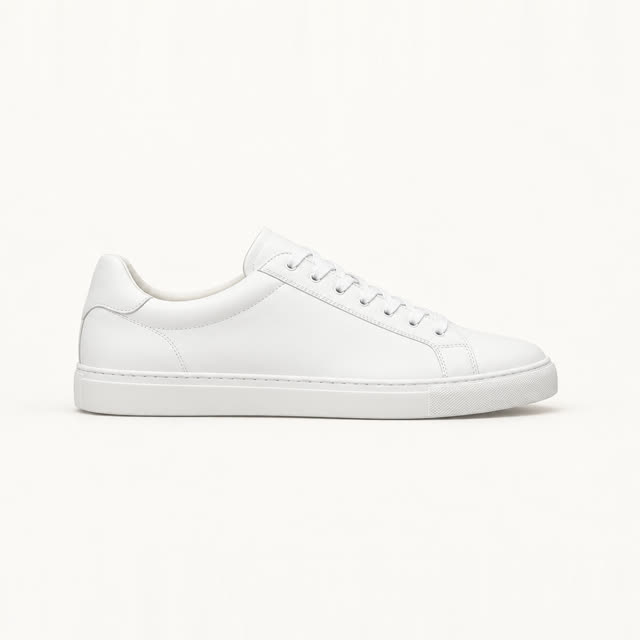 Court Classic WhiteIn the answer$98
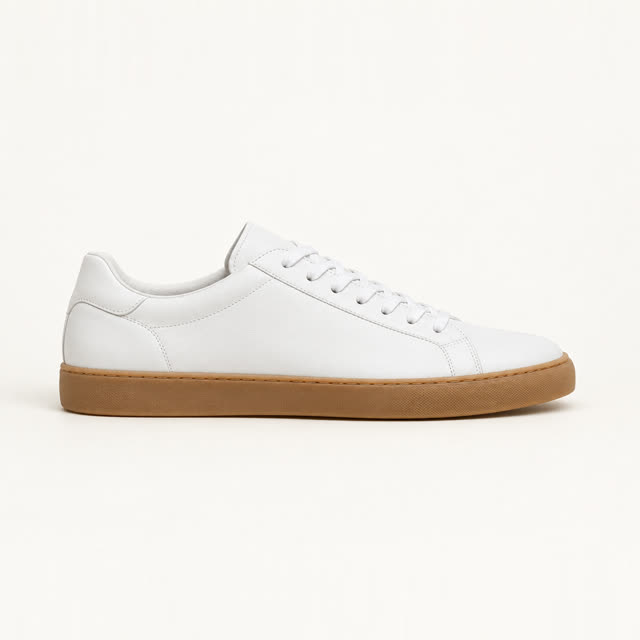 Court Gum SoleIn the answer$110
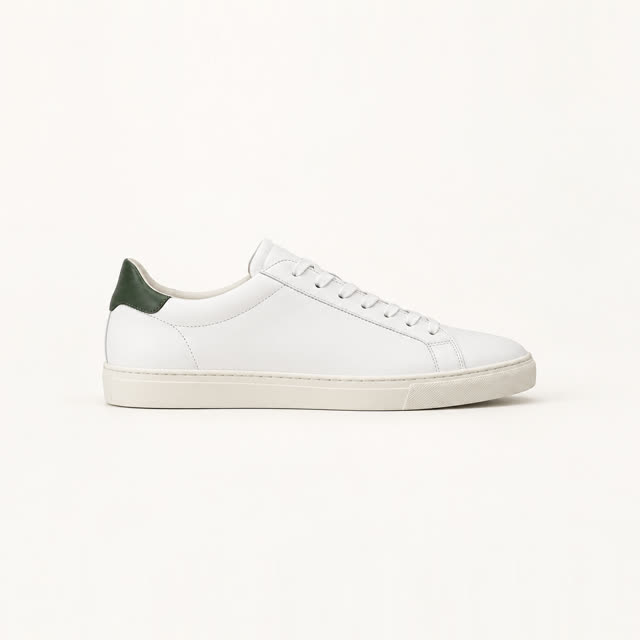 Club Low Green TabIn the answer$115
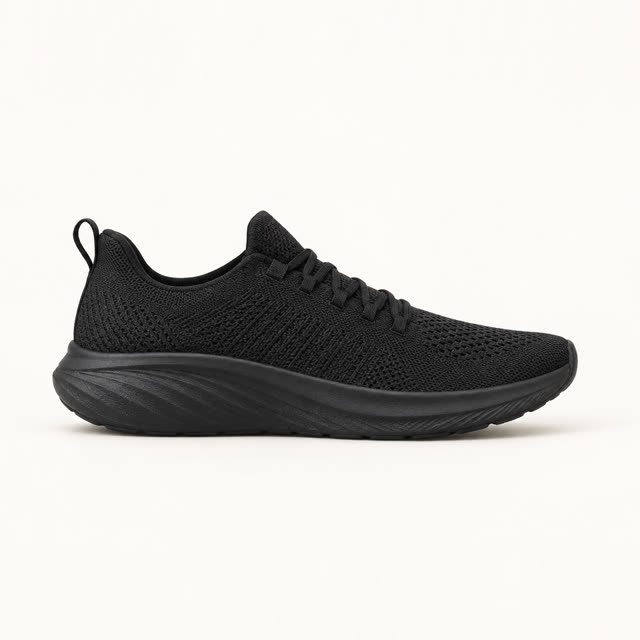 Night Knit RunnerBlack knit, and over $120$130
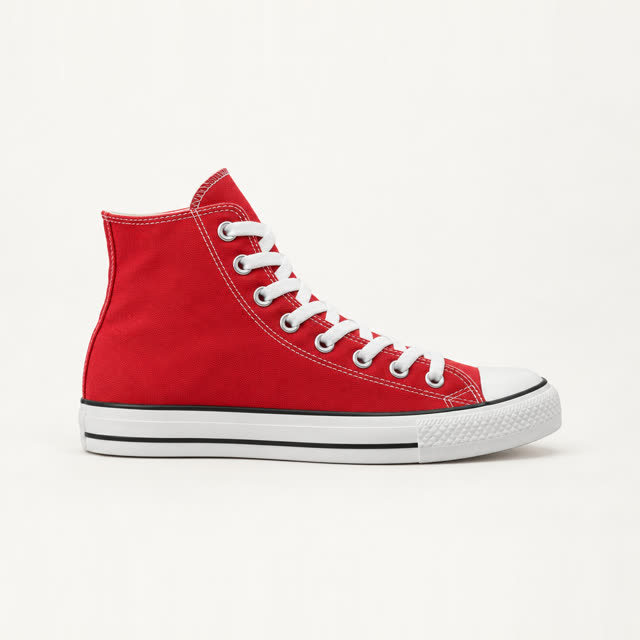 Canvas High RedRed canvas$75
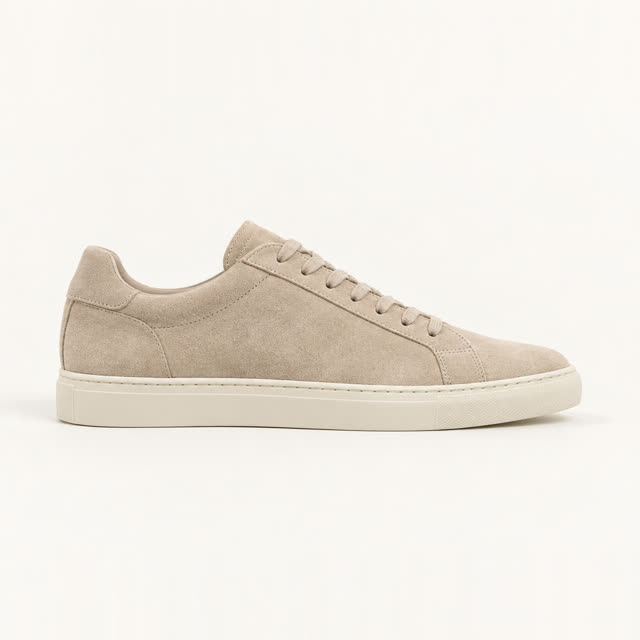 Sand Suede LowSuede, and over $120$125
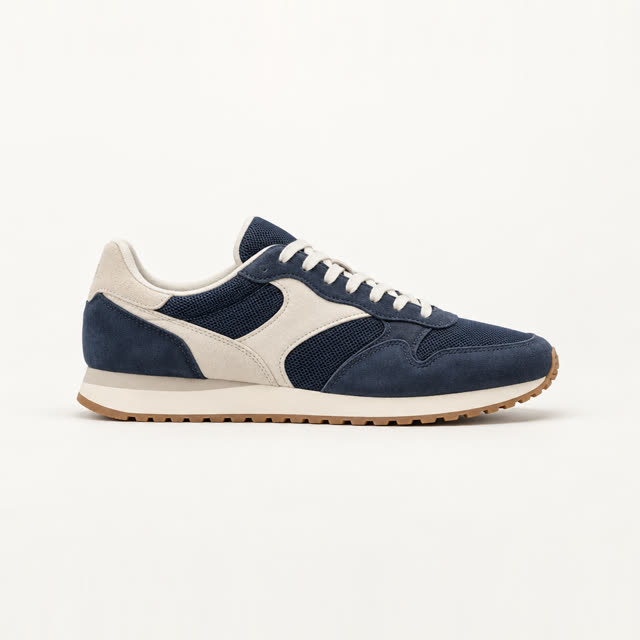 Retro Runner NavyNavy, not white$105
Each card shows a Size dropdown already on 9, with that variant's price. Add to Cart puts that exact variant in the shopper's Shopify cart. The button reads Adding..., then Added! in green, and the cart on your theme updates. Products the store cannot sell, such as sold-out ones, do not come back as cards. The pillar page on adding to cart from the chat covers that flow in full, and product cards that open on the right variant explains how the card picks the size and color the shopper named.
What happens when a shopper is stuck between two options?
On Pro, Premium and Ultra, the Smart timing popup notices a shopper switching between a product's options and offers help. Its Comparing situation shows "Need help choosing?" with a button, "Which option suits me?", unless you write your own text.
Tapping the button opens the chat and sends "Which option suits me?" as the shopper's first message, so the answer starts without typing. The chat shows "Chatting about Court Gum Sole" at the top, so the agent knows which product the shopper means. A shopper flipping between 9 and 10 is unsure about fit, so the answer comes from the product's listing details and the sizing guide in your Knowledge base. If they say the pair runs half a size small, the shopper hears that and picks 10 with the card's Size dropdown. If neither says anything about fit, the agent cannot either, which is why the checklist below starts with your listings and your sizing guide.
On Starter and Growth, the Generic popup does a simpler version: a message on product pages after a wait you set. The post on a chat that opens at the right moment goes through all four Smart timing situations.
How do you reduce cart abandonment with an AI chat agent on Shopify once items are in the cart?
It answers the last question before checkout from your own store, and it knows what is already in the cart. A shopper on the cart page who asks "can I return these if size 9 is too small?" gets the answer from your returns page. If your returns page does not say, the agent says it does not know rather than inventing a policy.
The agent sees the items, sizes and total in the cart. So when a shopper asks what else goes with their pick, the answer starts from what they already chose, which is the idea behind cart-aware upsells. The chat does not hand out discount codes on its own. If you want it to mention a code, write that offer and when to give it in Instructions in General settings.
What should you set up before the chat goes live?
Six settings decide whether the three moments above work on your store, and you can test all of them in the chat preview beside General settings before shoppers see anything.
- Turn the chat on in Shopify's theme editor, under the Chat Squeeze app embed. The chat stays off until you do.
- In Interactive elements, check that Add to cart is on and its button text reads the way your store talks.
- Keep your Shopify catalog the main source, with rich listing details: material, color, fit and care in each product's title, options and description. The agent can only match what your listings say.
- In the Knowledge base, use Add knowledge to upload your FAQ, a general sizing guide and anything else shoppers ask about, such as shipping, returns and exchanges, as text, a file or a store page.
- In Proactive popups, pick Smart timing on Pro and up and leave Comparing on, or turn on the Generic popup for Product pages on any plan.
- Ask the preview your three most common pre-sale questions word for word, then tap Add to Cart and check your cart. Preview answers count as messages on your plan.
How do you know whether the chat reduced drop-off?
Sales & analytics in the Chat Squeeze dashboard shows it for the period you pick. Added to cart counts chats where the shopper added a product, each chat once. Conversion counts chats started in the period that ended in an order. Where sales came from splits orders by source, including Added in the chat and From the popup.
Watch two numbers over the 14-day trial: Added to cart, and orders from Added in the chat. Then click any order to read the conversation that led to it. Those chats show which questions your product pages leave open, so you know which descriptions to fix first. To put a rough value on it for your traffic first, the Shopify AI chat agent ROI calculator takes your own numbers. You can install Chat Squeeze from the Shopify App Store and run the six checks above on your own catalog.
Cart abandonment and AI chat FAQ
- Can an AI chat agent reduce cart abandonment on Shopify?
- It can help with the part emails never reach. To reduce cart abandonment with an AI chat agent on Shopify, use it before and inside the cart: it finds the right product and size from one message, answers shipping and returns questions from your own pages, and adds the item to the cart in the chat. Emails after a left checkout stay with Shopify.
- Does Chat Squeeze send abandoned cart emails?
- No. Chat Squeeze works while the shopper is still on your store. Shopify's own abandoned checkout emails, or your email app, handle shoppers who left a checkout.
- Which Chat Squeeze plan do I need for this?
- Add to cart in the chat, product cards with sizes and answers from your store's pages are on every plan, from Starter at $22.99 a month. The Smart timing popup that reacts to a shopper comparing options is on Pro, Premium and Ultra. Every paid plan starts with a 14-day free trial.
- How do I see whether the chat changed anything?
- Compare Added to cart and Conversion in Sales & analytics at the start and end of your trial, and open the orders marked Added in the chat to read the conversations behind them.